
IN333 Login
Sign in with your mobile number
100% Secure Connection · Fast login
- Login Method
- Mobile number and Password
- Password required?
- Password
- App available
- Android APK Available
- iOS Login
- Use mobile browser
How to Login?
- 1
Open website or app
Click on sign in it is available on the top right corner of the screen

- 2
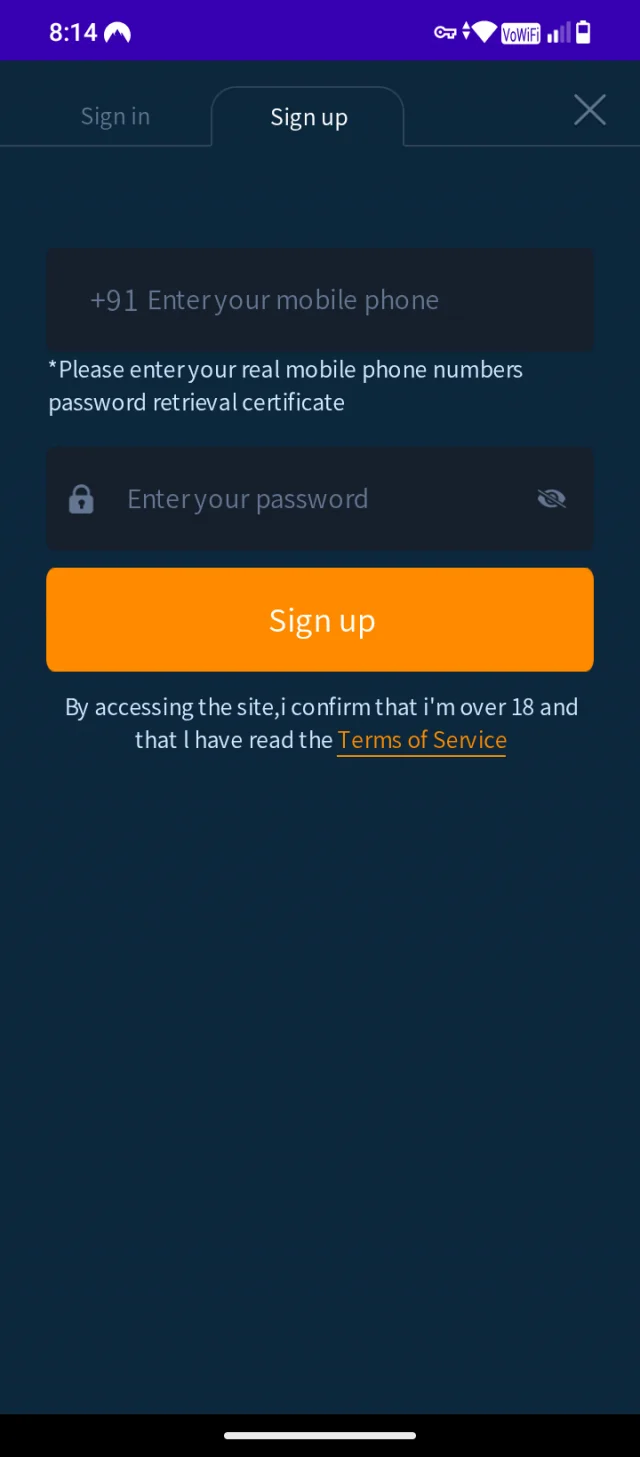
Enter information
Enter information like mobile number and password
- 3
After login
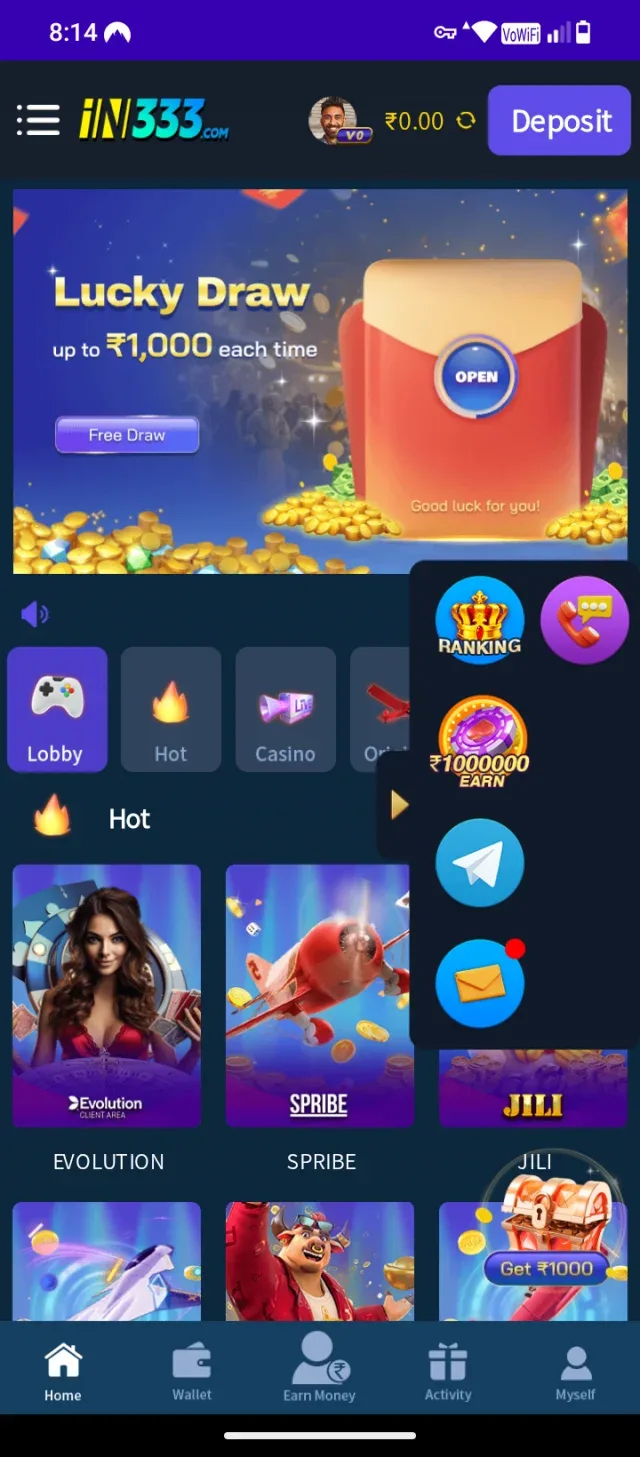
You will be done login once you click on Login button and after login you will be on dashboard board
- 4
Now click on wallet
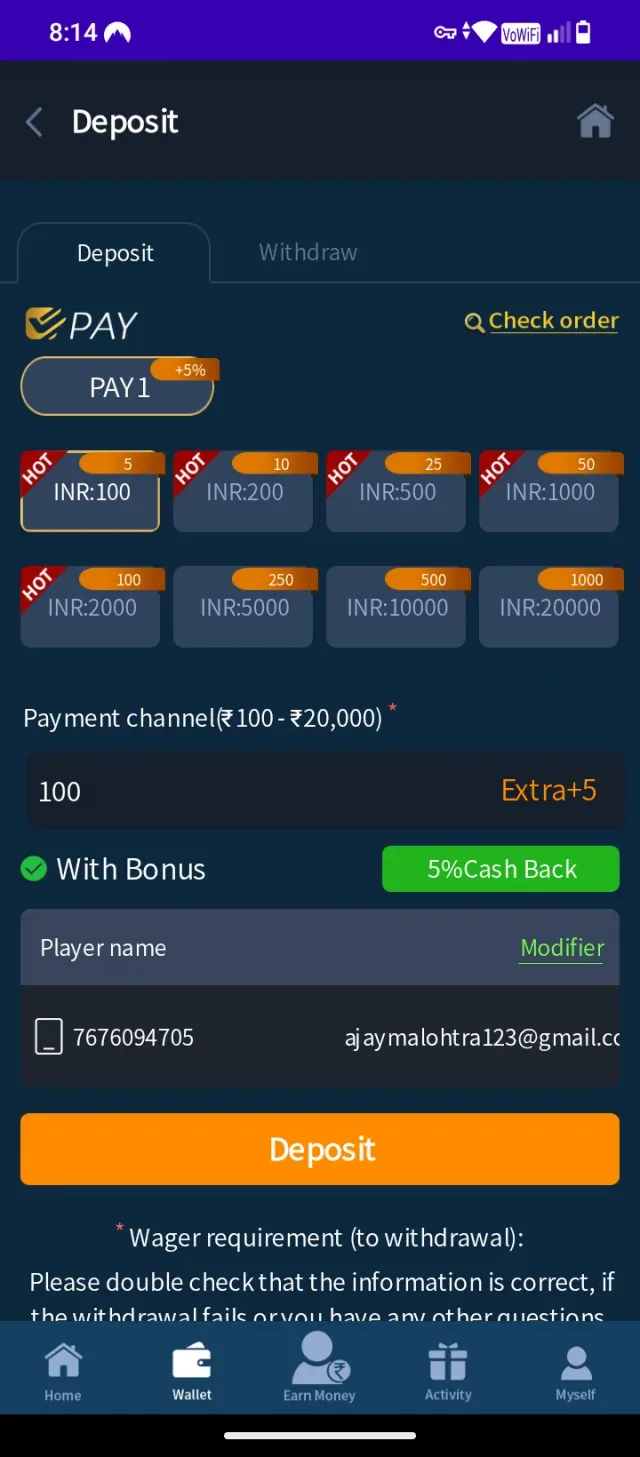
After tapping on wallet you will be able to deposit or withdraw amount
- 5
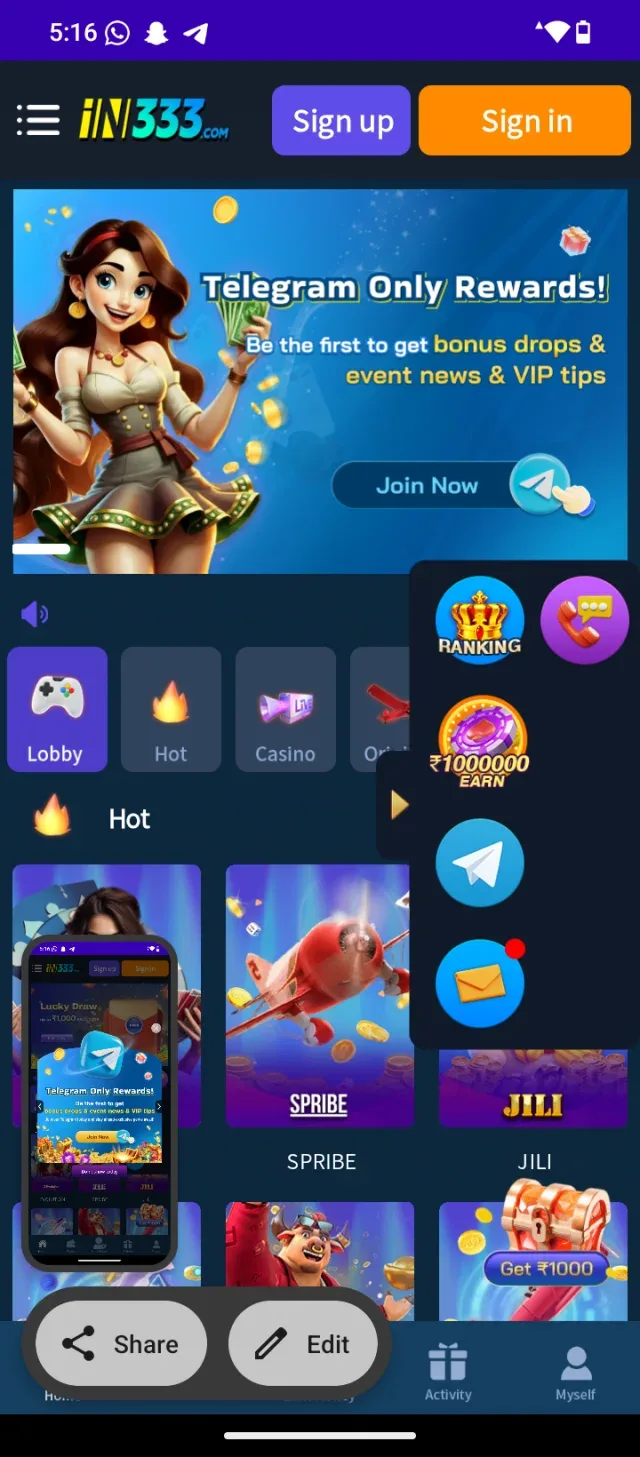
Navigating to the Sign In Page
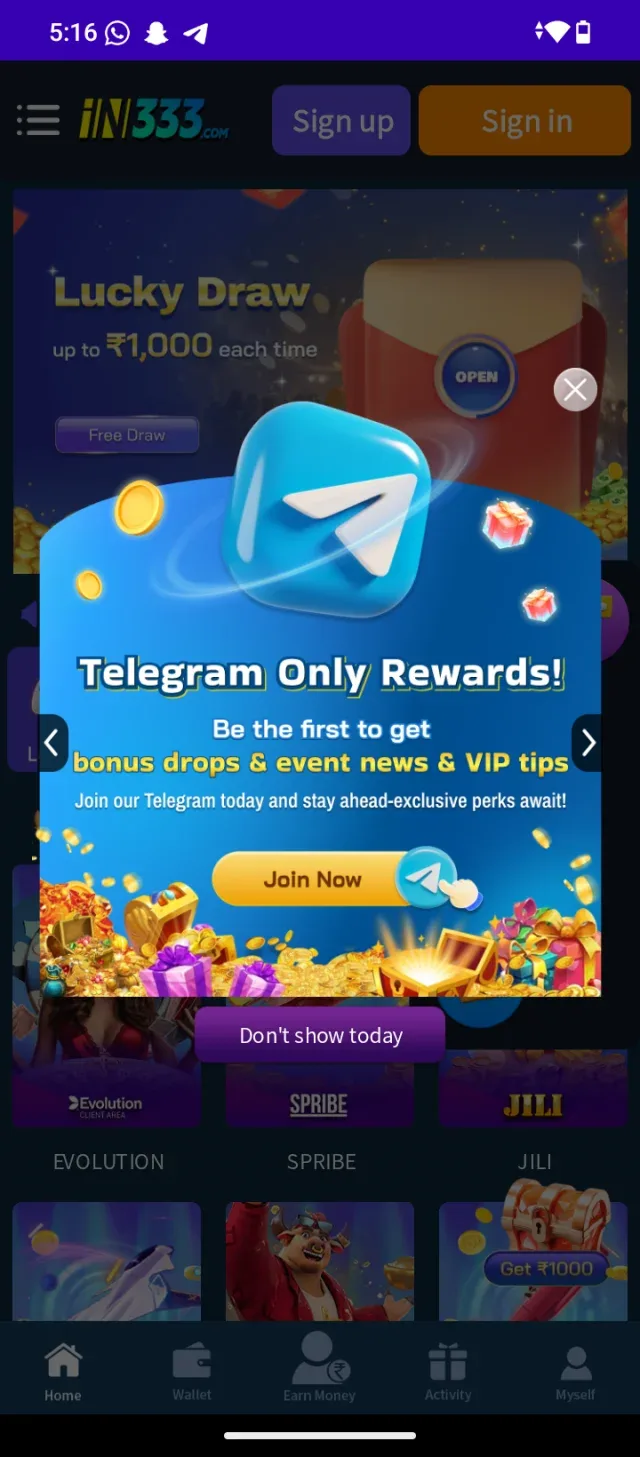
Tap the "X" button located at the top-right corner of the blue popup window to close it. Alternatively, you can tap Don't show today near the bottom.</br>Verification: The popup will dismiss, revealing the full homepage interface.
- 6
Opening the Login Form
Tap Sign In</br>Top right area</br>Tap the yellow Sign in button located at the top-right corner of the top header bar.</br>Verification: The screen will navigate to the login input page where you can enter your account details.
- 7
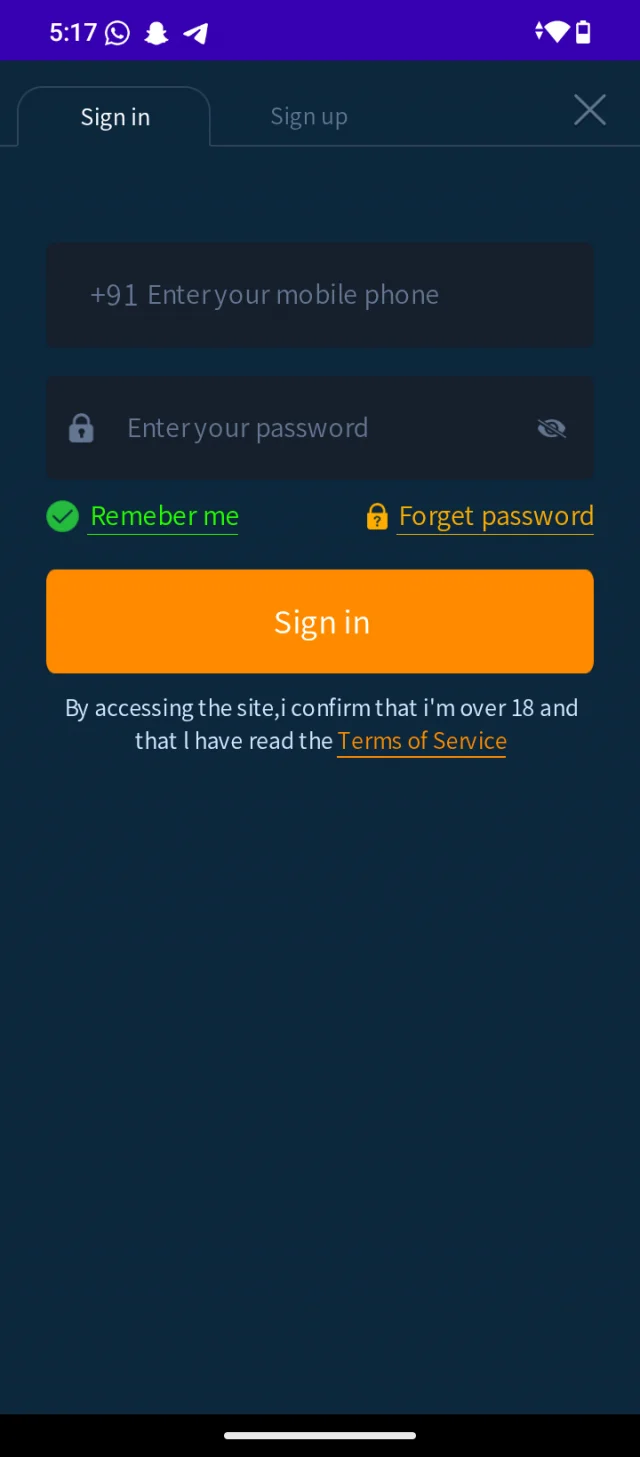
Entering Login Details
Enter Mobile Number</br>10-digit mobile number</br>Tap the Enter your mobile phone field and type in your registered 10-digit phone number.</br>Verification: Your mobile number appears clearly in the input field next to the +91 prefix.</br>2</br>Enter Password</br>Account password</br>Tap the Enter your password field and type your account password.</br>Verification: Bullet points appear in the box as you type to keep your password hidden.</br>3</br>Tap Sign In Button</br>Submit form</br>Tap the orange Sign in button directly below the fields to log into your account.</br>Verification: The page will process your credentials and open your logged-in account home page.
- 8
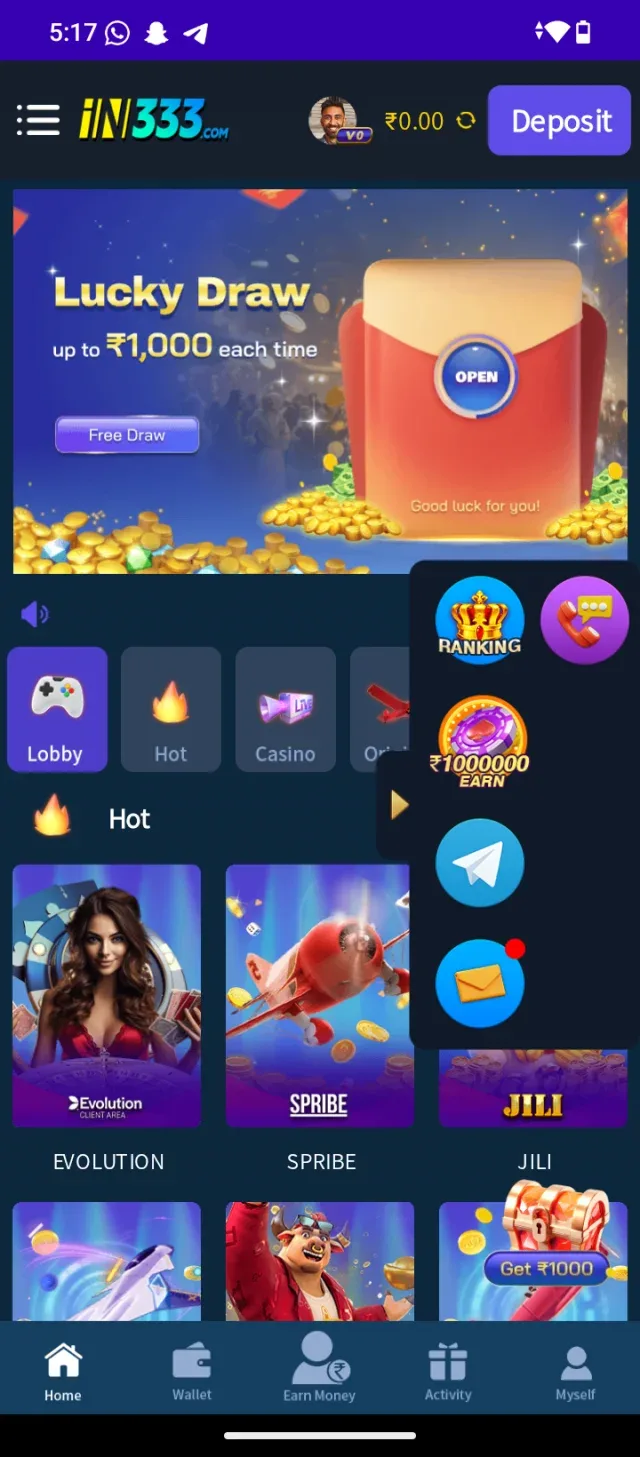
Login Verification & Profile Access
You have successfully logged into your account. Looking at the top right of your screen, your account balance (₹0.00) and the blue Deposit button confirm that you are now signed in. </br>Access Account Settings (Myself)</br>Bottom right navigation</br>Tap the Myself icon in the bottom-right corner of the navigation bar.</br>Verification: The account dashboard opens, displaying your profile ID, wallet information, deposit history, and security settings.</br>2</br>Access Wallet / Deposit</br>Top right navigation</br>To manage your funds or add money to your account, tap the blue Deposit button at the top right.</br>Verification: The deposit options page will display supported payment methods like UPI and bank transfers.
- 9
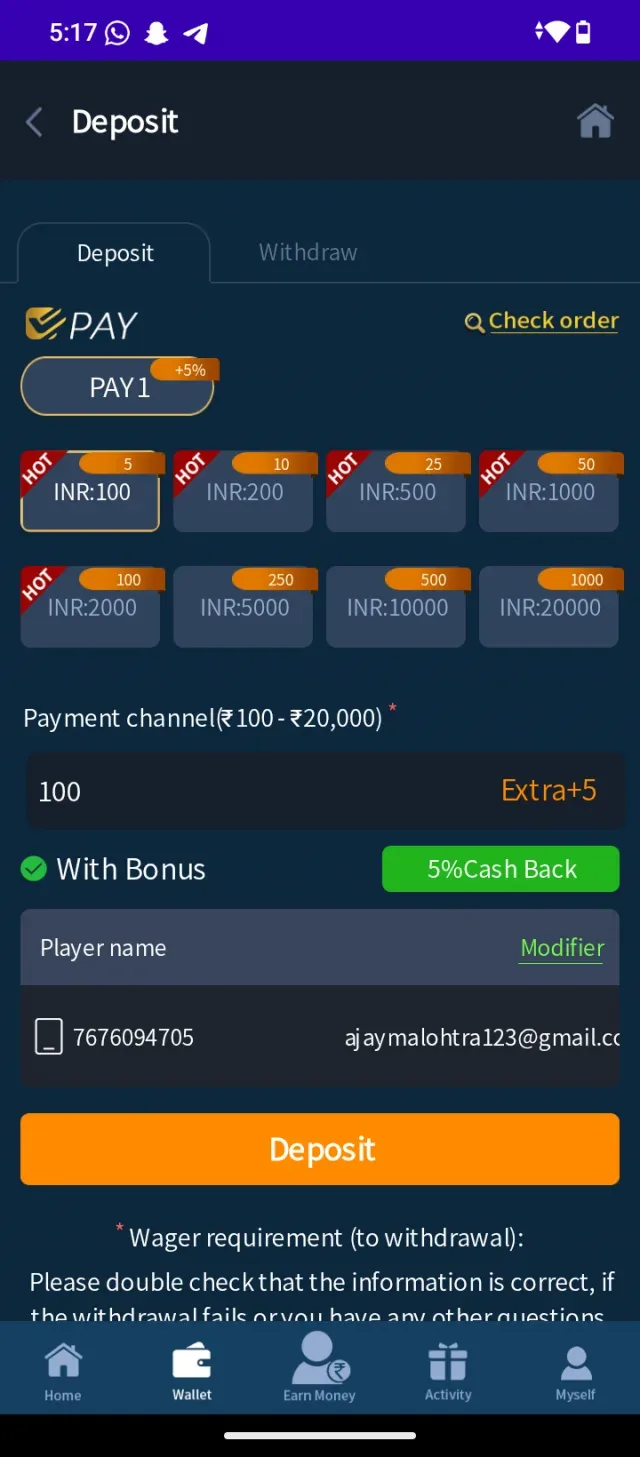
Making a Deposit
Select Deposit Amount</br>Preset or custom amount</br>Tap one of the quick select chips (such as INR:100, INR:200, or INR:500) or type your desired amount directly into the input box.</br>Verification: The chosen figure will be highlighted and displayed inside the payment channel input box.</br>2</br>Verify Player Details</br>Contact & player information</br>Check that your registered phone number and email address listed under the Player name section are correct. If you need to make changes, tap Modifier.</br>Verification: The phone number and email fields match your intended account payment details.</br>Proceed to Payment Gateway</br>Tap the large orange Deposit button near the bottom.</br>Verification: The app redirects you to the payment screen to select your preferred payment method (such as UPI, Paytm, or Net Banking).
- 10
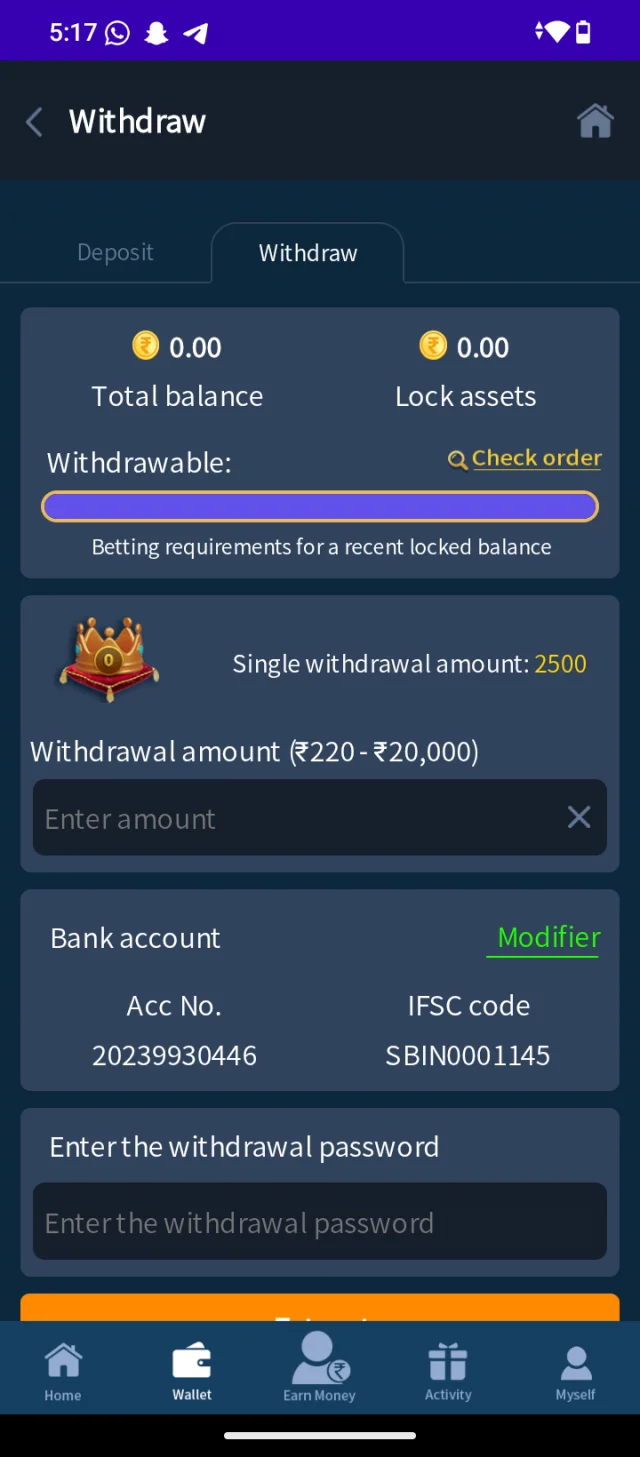
Withdrawing Funds
Enter Withdrawal Amount</br>Minimum ₹220, Maximum ₹20,000</br>Tap the Enter amount field and type the sum you wish to withdraw. Ensure the amount is within the allowed range of ₹220 to ₹20,000.</br>Verification: The typed number displays in the text box without error warnings.</br>2</br>Verify Bank Details</br>Check account number & IFSC</br>Review the linked Bank account number and IFSC code displayed on the screen. If you need to update your payout bank, tap Modifier.</br>Verification: The account details match your official bank account records.</br>Enter Withdrawal Password</br>Security verification</br>Tap the Enter the withdrawal password field and type your designated withdrawal transaction PIN/password.</br>Verification: Masked bullet points appear in the input box as you enter your password.</br>4</br>Tap Withdraw Button</br>Submit request</br>Tap the orange Withdraw button at the bottom of the screen.</br>Verification: A confirmation popup or "Order Submitted" notification will appear, and your withdrawable balance will update.
- 11
Disclaimer
Informational & Educational Use Only: The step-by-step guidance provided above is strictly for instructional, educational, and technical demonstration purposes to assist users in navigating mobile application user interfaces and workflow setups.</br>No Endorsement or Financial Advice: This guide does not constitute an endorsement, promotion, or recommendation of the IN333 platform, its operators, or any real-money gaming, betting, or financial transactions.</br>User Responsibility & Compliance: Users are solely responsible for verifying and adhering to all local laws, age requirements, and legal regulations regarding online gaming and money transfers in their respective jurisdictions. Proceed with appropriate caution when managing personal accounts and financial transactions.
[Screenshot: Disclaimer]
Common Questions
What should I do if I forget my login password?
On the Sign in page, tap the Forget password link located below the password field. Enter your registered mobile number to receive a verification OTP and follow the instructions to create a new password.