
IN333 APK Download
APP install guide · Real device tested
This is the Android package used in our latest test
- Version
- Version 1.0.28
- File Size
- 35.17MB
- Updated
- 17 Sep 2026
- Tested On
- Moto edge 60 Android 16
How to Install
- 1
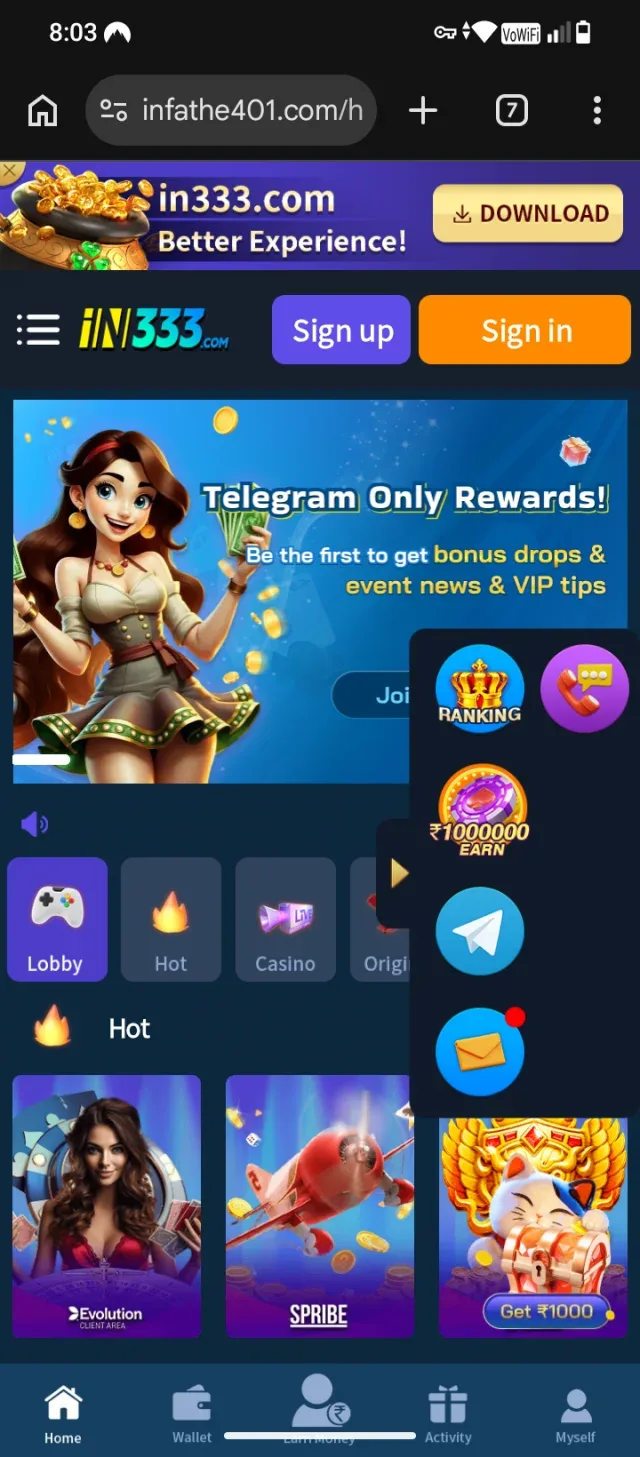
Visit official website
Visit official website and click on the download button to the top of the screen
- 2
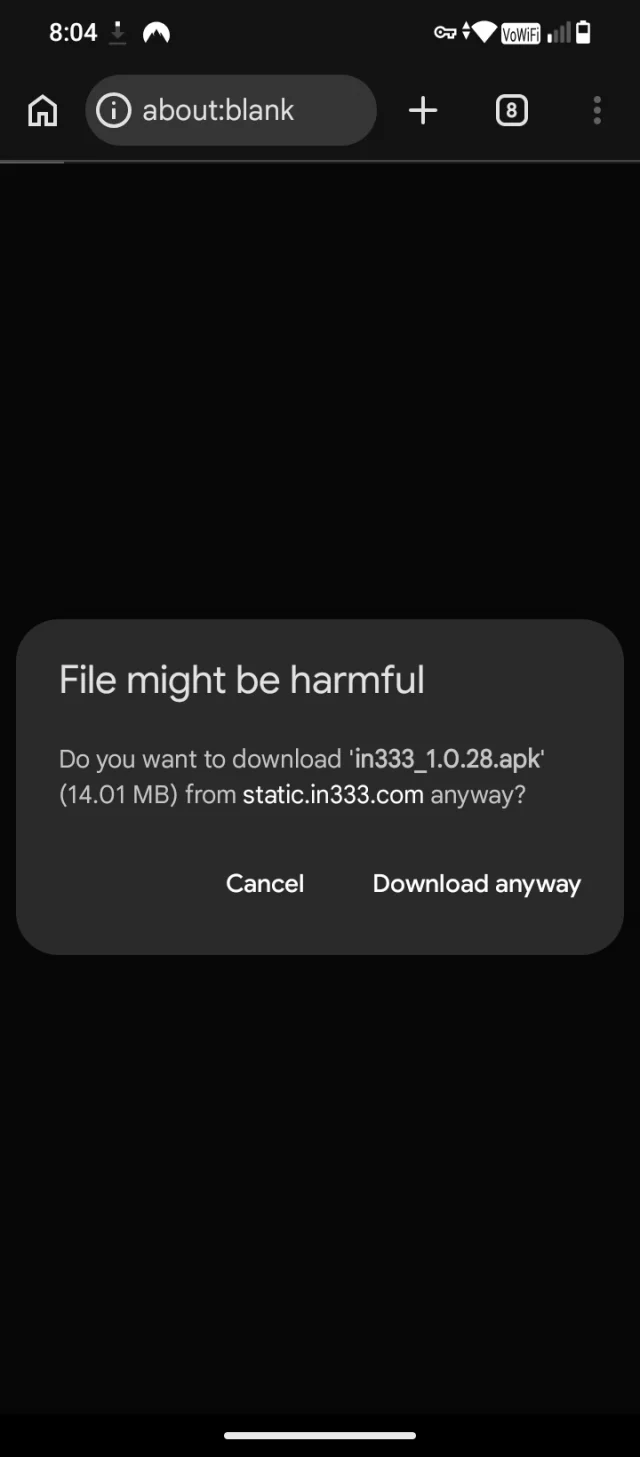
If Chrome shows a warning
Tap Download anyway or Keep file. This is normal for APKs not from Play Store.
- 3
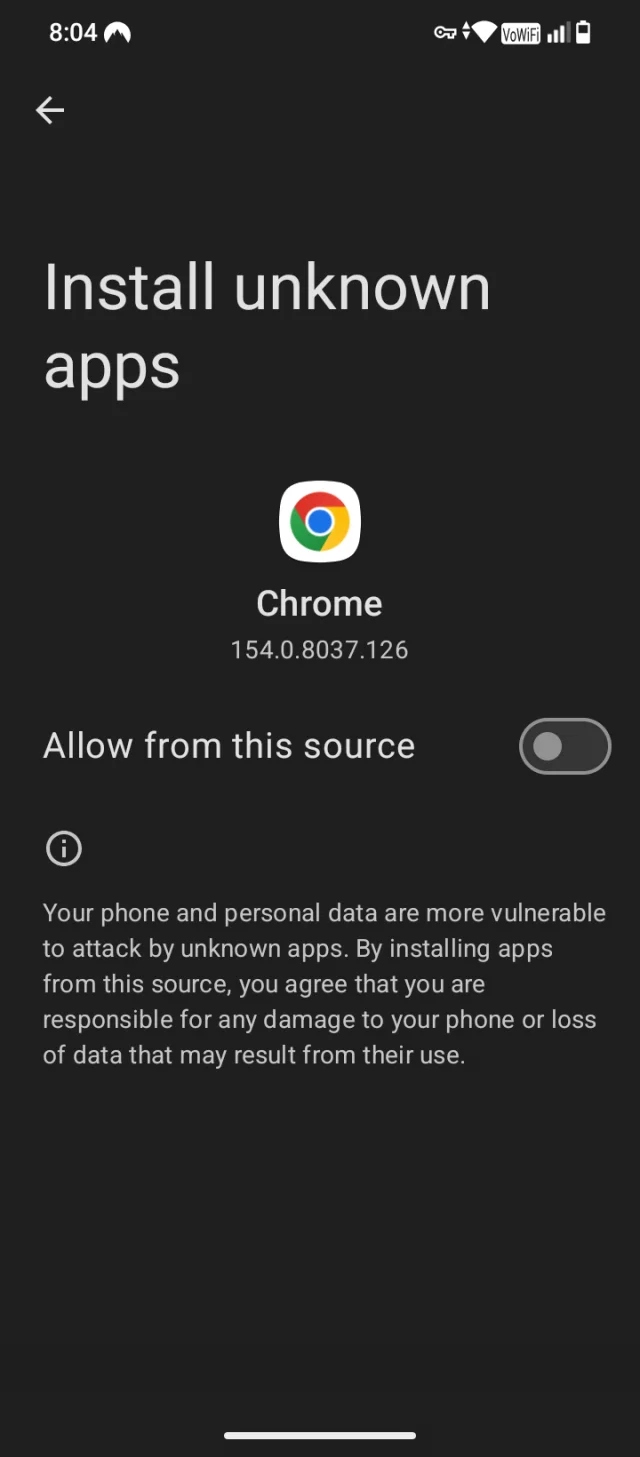
Allow install from unknown sources
Go to Settings -> Apps -> Special access -> Install unknown apps -> select your browser -> Allow.
- 4
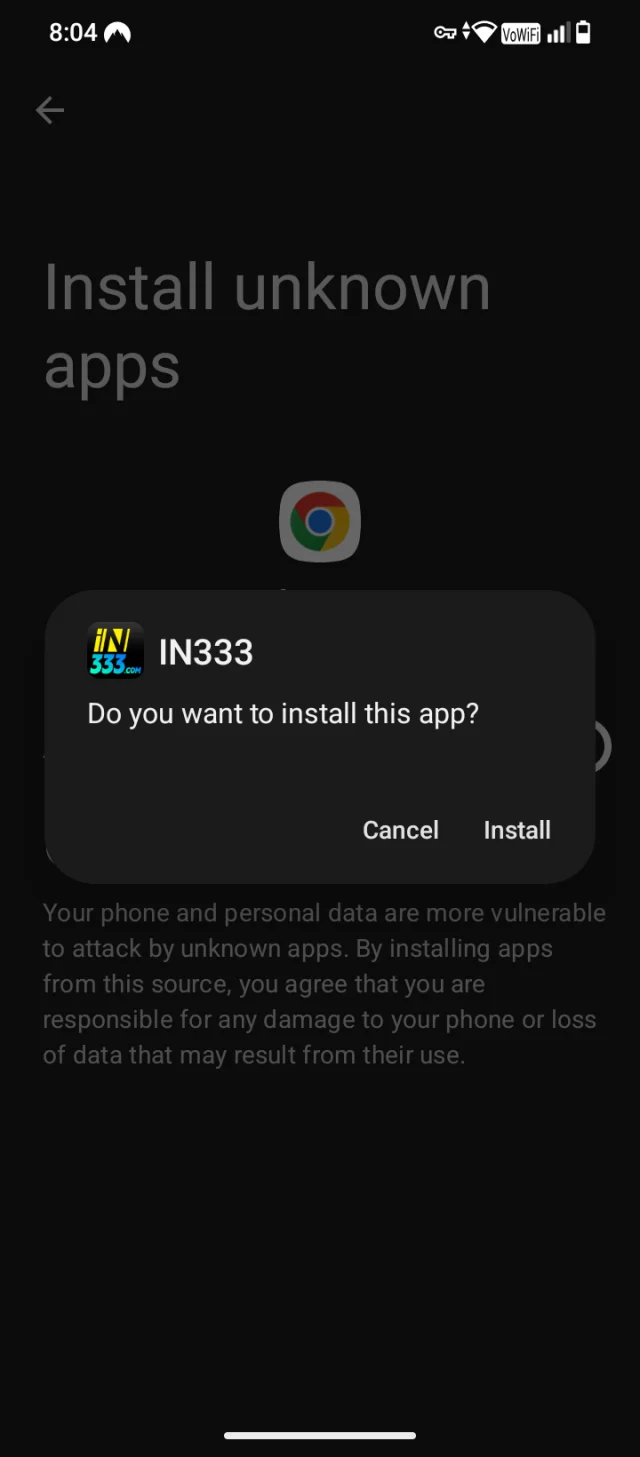
Open the APK and install
Open the downloaded file from notification or Files app. Tap Install. It usually takes less than 1 minute
- 5
Open the app and log in
After install, open it. You still need to register or login with your mobile number. The app looks more faster than website.
- 6
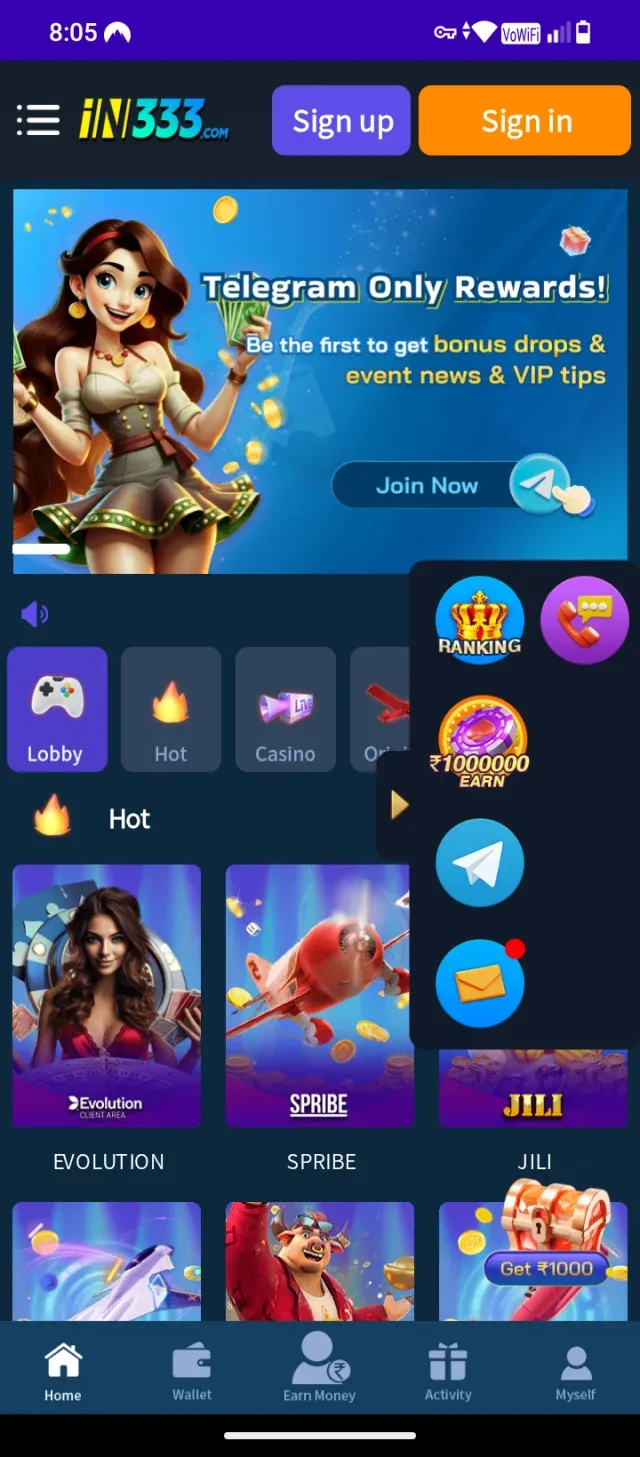
Initiating the Application Download
you're on the web version of the platform in your phone's browser, and a promotional popup has appeared over the page. To start, look near the top right corner of the page—you'll see a button labeled "DOWNLOAD" with a downward arrow icon next to the address bar. Tap that DOWNLOAD button to begin downloading the app.
- 7
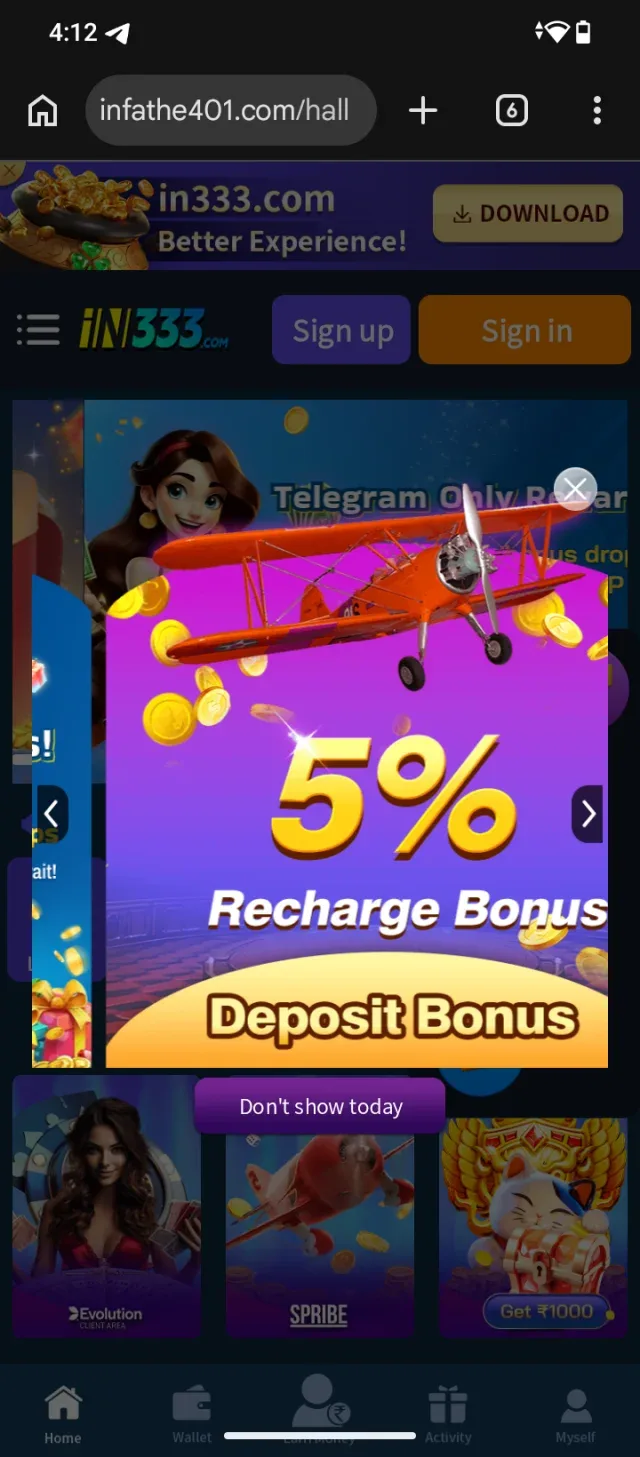
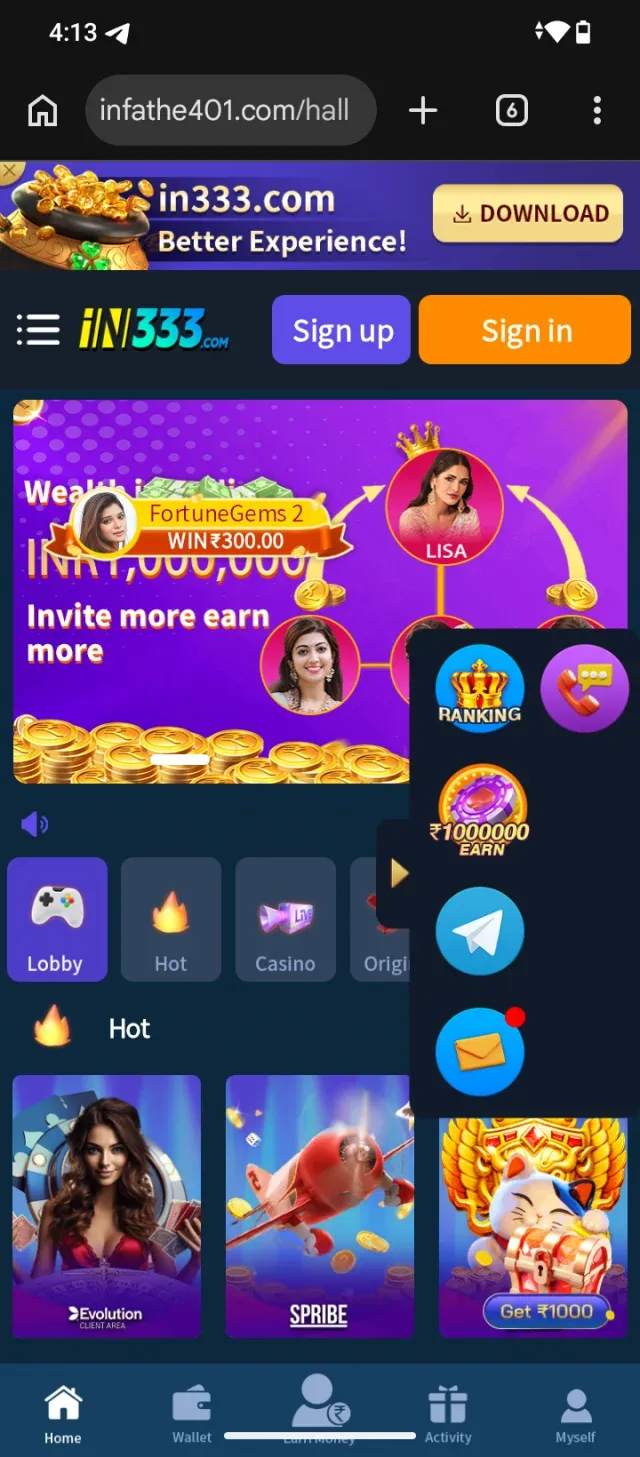
To continue the download from this screen
look at the top right corner where the DOWNLOAD button with the yellow background is located. Tap that DOWNLOAD button to trigger the APK file download.
- 8
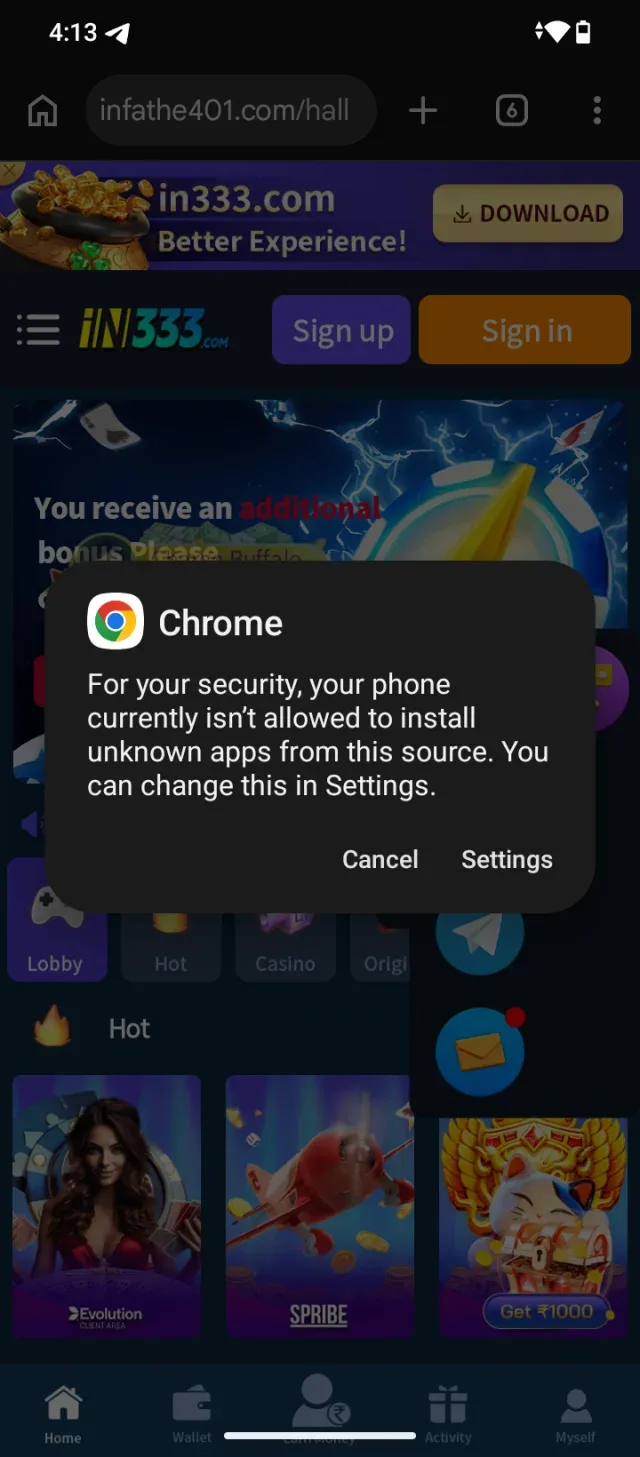
To allow your phone to install the app from Chrome
Tap Settings on the permission popup shown on your screen.</br>Verification: You will be redirected to the "Install unknown apps" page in your phone settings.
- 9
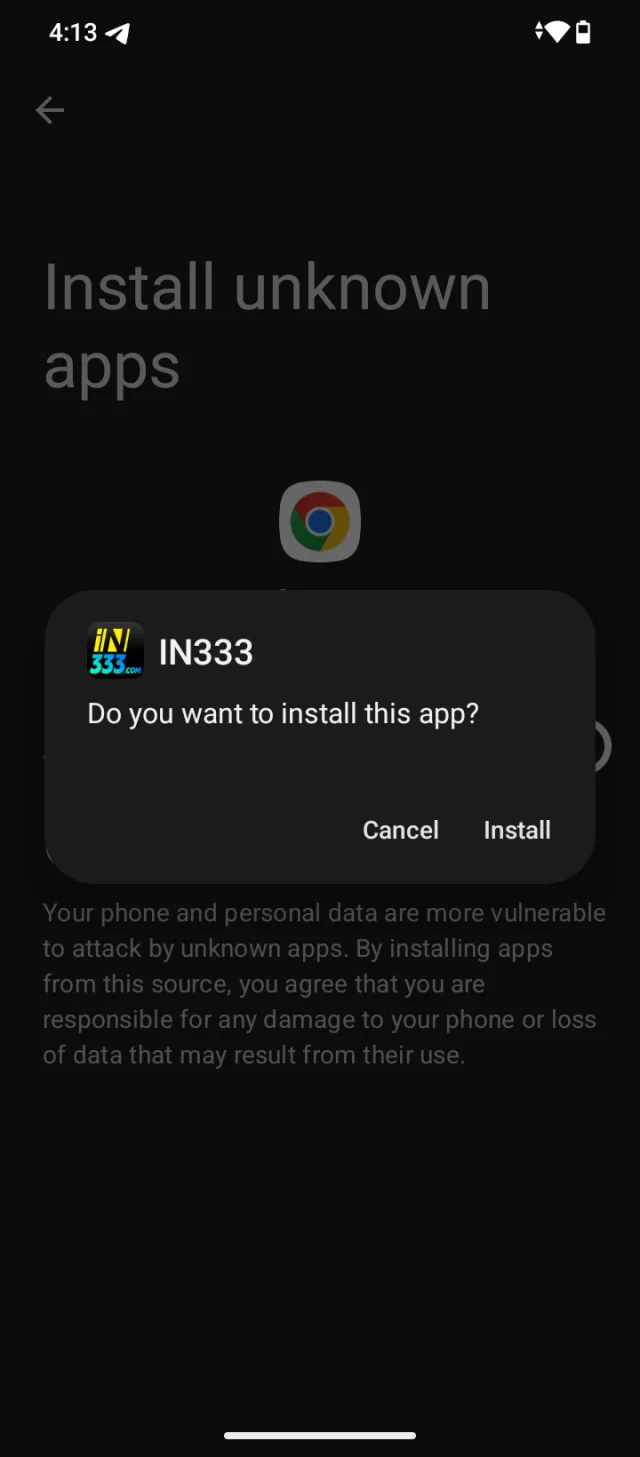
Installing the IN333 Application
Confirm Installation</br>From the confirmation prompt</br>Tap Install at the bottom-right corner of the dialog box.</br>Verification: An installation progress bar will display while the app files are written to your device.
- 10
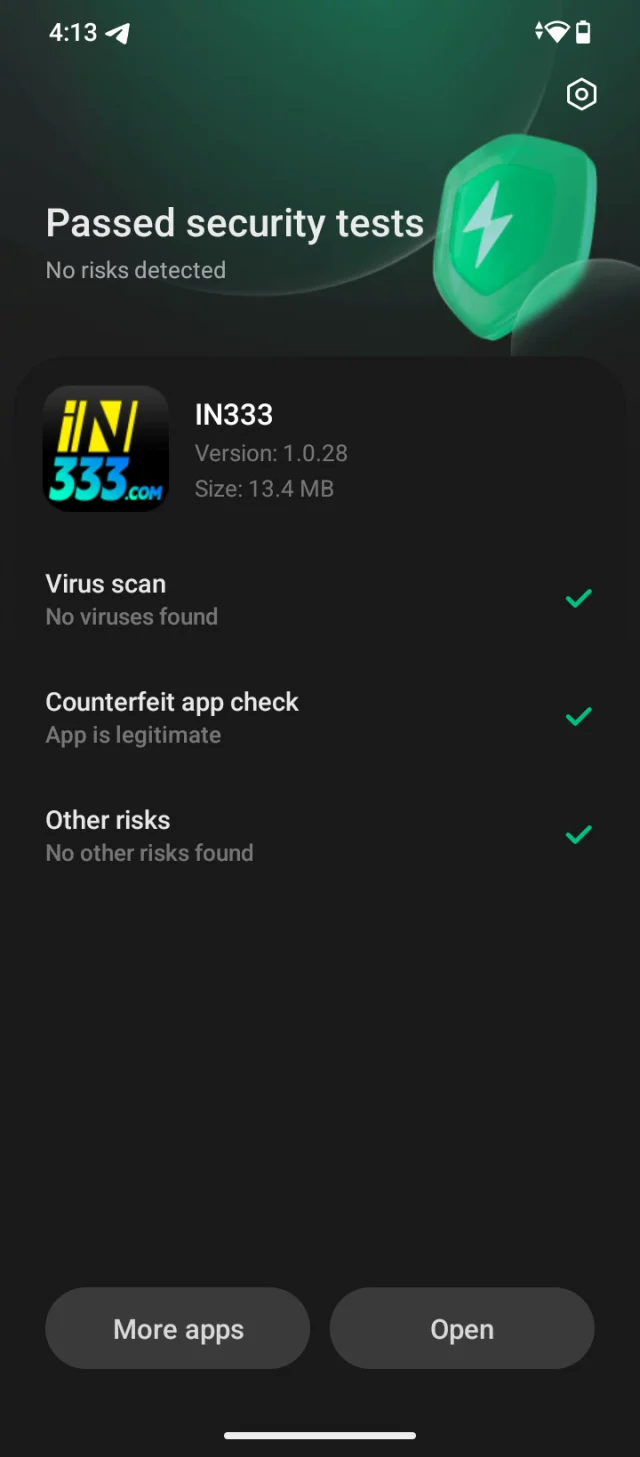
Open the App
Once the installation finishes, tap Open (or locate the IN333 icon on your phone's home screen or app drawer to launch it).</br>Verification: The IN333 application will open to its main home screen.
- 11
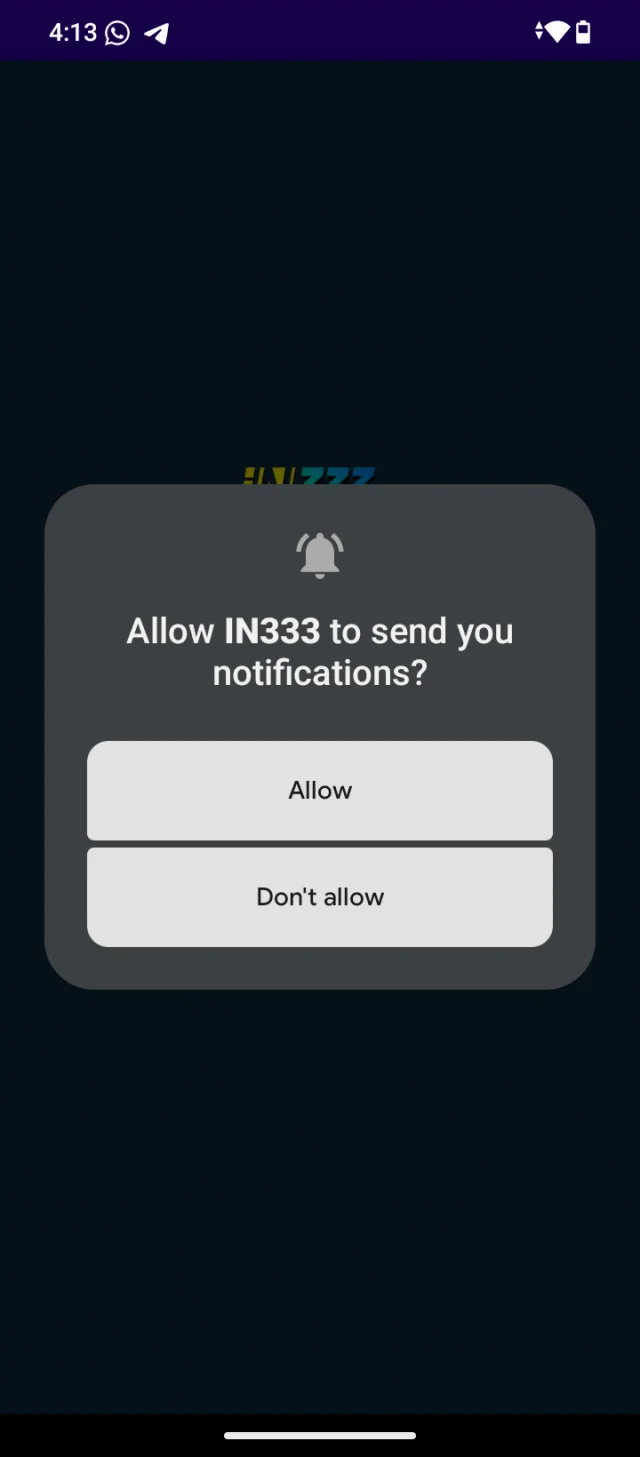
Handling Notification Permissions
Choose Notification Setting</br>From the permission prompt</br>Tap Allow if you want to receive updates, game alerts, and promo notifications, or tap Don't allow if you prefer not to receive push notifications.</br>Verification: The popup dialog will close, revealing the main login/home screen of the app.
- 12
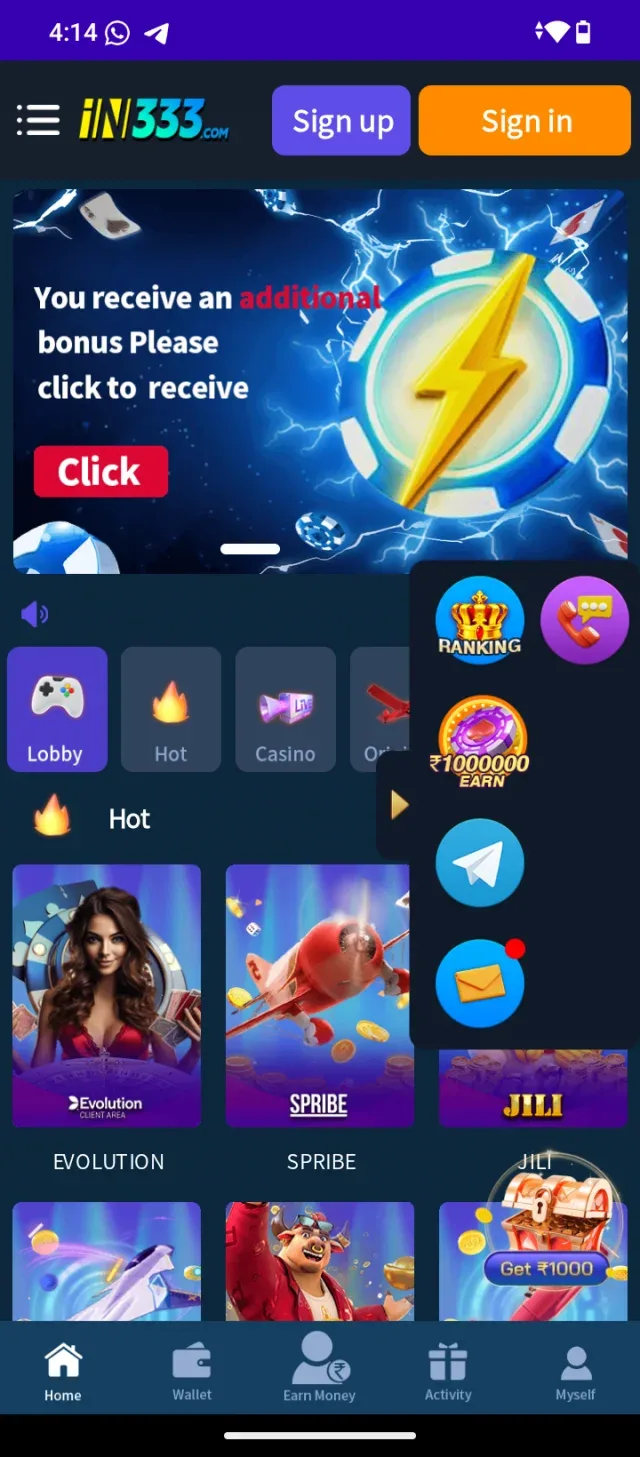
Accessing Account Registration
Tap the blue Sign up button located at the top right of the screen.</br>Verification: A new screen or pop-up form will appear asking for your phone number and password details.
- 13
Disclaimer
Informational & Educational Use Only: The step-by-step guidance provided above is intended strictly for instructional, educational, and technical demonstration purposes on how to navigate mobile application installations and user interfaces.</br>No Endorsement or Financial Advice: This assistance does not constitute an endorsement, promotion, or recommendation of the IN333 platform, its associated services, or any real-money gaming/financial activities.</br>User Responsibility: Users are solely responsible for ensuring that their access to and use of third-party applications complies with local laws, regulations, and age restrictions in their respective jurisdictions. Please practice caution when interacting with third-party software downloads.
[Screenshot: Disclaimer]
Common Questions
Why does my phone say "File might be harmful" when downloading the app?
Android displays this standard warning whenever you download an application directly through a web browser instead of the official Google Play Store. It is a precautionary security alert for all third-party APK files.